
How to Make Your Dog Talk With AI
Turn a guilty sock-thief look into a talking clip: tool picks, a side-eye prompt, and six dog scripts.

Your dog is holding a stolen sock and looking you straight in the eye. You already have the setup. Give that look a line, and you have a video.
Start with a photo and one short line. If you want the mouth to move with the words, choose a tool that supports pet lip sync. If the original expression is the joke, animate the photo and add a voiceover or captions instead.
Which AI tool should you use?
| Tool | What you start with | When to choose it |
|---|---|---|
| My Talking Pet AI | A pet photo | You want a tool designed around talking pet photos. |
| DomoAI Talking Avatar | A photo and typed text or recorded audio | You want to generate a voice from text or upload your own performance. |
| Lipsync.video Talking Animals | A pet photo or existing animal video plus dialogue | You already have a reaction clip and want to try visible speech. |
| VidFab Image to Video + an editor | A photo and motion prompt; add audio or captions separately | You want a reaction shot or animated card, not speech synced to the mouth. |
The table compares published features, not hands-on output quality. Check the tool’s credits, export options, and watermark rules before making a batch.
Method 1: Make your dog visibly say a line
- Choose the photo. Start with one well-lit face and a clear view of the nose, mouth, and jaw. If the sock covers the mouth, keep that picture as the opening shot and use a second photo with an unobstructed muzzle for the spoken line.
- Test the line. Type it or upload a recording in a tool such as DomoAI Talking Avatar. Try: “This isn’t your sock anymore. We’ve bonded.” Read it aloud first. If the last words feel rushed, shorten the line rather than speeding up the voice.
- Check the mouth and the face. Watch once at normal speed for timing, then pause on a speaking frame. Compare the muzzle, markings, and eyes with the original. If the face changes noticeably, test a clearer photo or shorter line. Keep the audio so you can reuse it in the next method.
Method 2: Animate a reaction and add a voiceover
Upload the photo to VidFab Image to Video. Ask for one small reaction rather than a full performance:
Keep the same dog, framing, and background as the reference photo.
The dog gives a sideways glance.
Preserve the original face shape, markings, and eye color.
Keep the mouth closed and the camera steady. Do not add text.
Add the recording in your editor, or show the line in separate caption beats. If the face drifts, simplify the motion to a single blink. If the still photo works better, use it as the reaction shot instead.
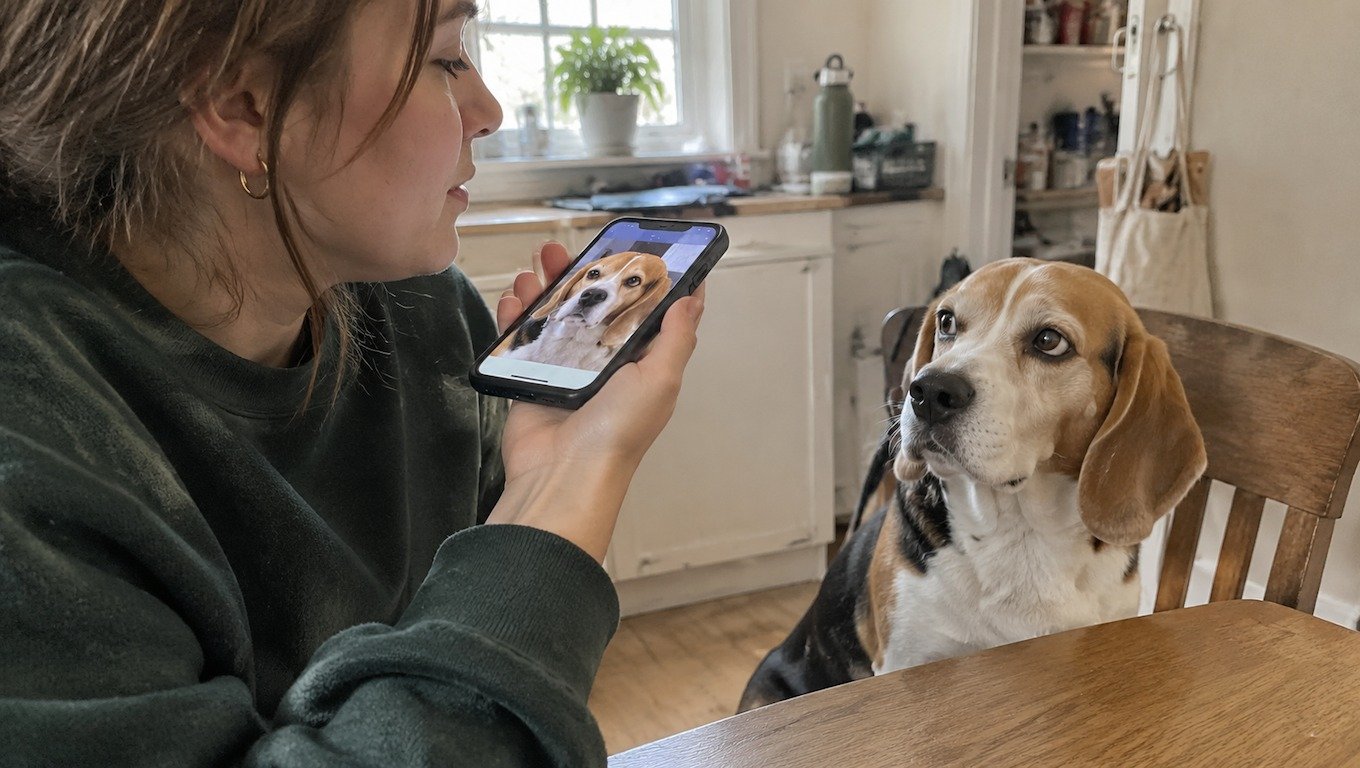
One recording, two ways to cut it
| Beat | Visible speech | Voiceover or captions |
|---|---|---|
| Setup | Show “Who took my sock?” | Use the same opening caption. |
| Answer | Cut to a clear close-up for the spoken line. | Hold the original expression or animate one small reaction while the line plays. |
| Ending | Hold on the expression for a beat after the punchline, then cut. | Hold on the expression for a beat after the punchline, then cut. |
Want a different setup for your dog’s next line? Browse VidFab’s pet video templates for comedy and reaction scenes, then add your own voiceover in your editor.
Scripts to make your own
| Setup | Line |
|---|---|
| Dinner is late | “I understand dinner is at six. I’m proposing five.” |
| Caught on the couch | “You said off. I heard get comfortable.” |
| Doorbell rings | “Stay calm. I’ve been training for this.” |
| Rainy walk | “I asked for a walk, not a weather event.” |
| Favorite toy | “Of course we can share. You can look at it.” |
| New puppy | “I was told this was a temporary assignment.” |
Replace one generic detail with something recognizable: a favorite toy, the chair your pet claims, or a nickname the recipient knows. That detail matters more than making the animation elaborate.
Troubleshooting and FAQs
Why does the mouth look stretched or too human?
Use an unobstructed photo and test a shorter line. If the mouth still draws attention away from the words, reuse the audio over a closed-mouth reaction instead.
Why did the face or fur markings change?
Remove the head turn or camera movement. Compare the result against the original photo before adding dialogue. A still photo is also a valid fallback.
Can I use my own voice or footage?
Yes. Add your recording directly over your footage in an editor. For visible speech on an existing clip, check that the tool accepts both animal video and your audio input, then test a short section where the muzzle stays visible.
Does a panting or open-mouth photo work?
It's harder. Lip-sync tools have to close the mouth before they can animate speech, and a lolling tongue often turns into a smear. Pick a photo with the mouth closed or only slightly open.
Which voice suits a dog?
Match the voice to how the dog acts, not to its size. A tiny dog with a deep, serious voice is often funnier than the obvious squeaky one. Record a few takes yourself before trying generated voices.
Can two pets appear in one video?
Yes. Start with one close-up per pet and one line each. Cut between the clips rather than trying to animate both mouths in the same shot.
Can I make it work without sound?
Yes. Show the setup and punchline as separate captions. Give the viewer time to read each before cutting away.
Make your first clip
Pick the photo you want people to recognize first. Animate it with VidFab Image to Video if you want a reaction shot, or choose a pet lip-sync tool from the table if viewers need to see the words spoken.
For more ideas, see How to Make Your Cat Talk With AI and How to Make Your Pet Say Happy Birthday With AI.

